Saturday, 30 August 2014

SSID using WEP autentication in CISCO WLC


Step 1. Go to Controller - > Interface -> New to create new interface.


Step 2. Give the interface name and Vlan id and press APPLY.


Step 3. Provide the IP address/Netmask/Gateway to the interface. Also enter the VLAN id to which the ssid traffic will be mapped.

Map the logical interface to the physical port of the WLC.

DHCP server setting: - Enter WLC’s own address when the DHCP scope is created on WLC itself otherwise adds external DHCP server IP addresses.
 

Step 4. Press APPLY to apply the interface settings. You will get the below warning which says that it can impact the connectivity to the SSID. Hence we should not change the interface setting during production hours.
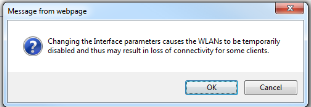
 

Step 5. Once you press ok, you will get the list of interface created so far.
  

Step 6. Go to WLAN ->wlan -> From the scroll Tab on right side plan, select CREATE  NEW and press GO.


Step 7 Enter Profile name and SSID name and select the unique ID and press APPLY.


Step 8 Click the SSID ID to configure the other parameter of the SSID.

Select the interface and radio policy for the SSID.


Step 9 Go to Security -> Layer 2 security and chose none. 
 
               
Step 10. In Layer 3 security tab, select none option and press APPLY.


Step 11. Enable the SSID, once the configuration is done.


Step 14 Go to WLAN - > WLANS and check the status of the SSID.


Configure Guest SSID using customized Web login page in CISCO WLC


Step 1. Go to Controller - > Interface  -> New to create new interface.


Step 2. Give the interface name and Vlan id and press APPLY.


Step 3. Provide the IP address/Netmask/Gateway to the interface. Also enter the VLAN id to which the ssid traffic will be mapped.

Map the logical interface to the physical port of the WLC.

DHCP server setting: - Enter WLC’s own address when the DHCP scope is created on WLC itself otherwise adds external DHCP server IP addresses.


Step 4. Press APPLY to apply the interface settings. You will get the below warning which says that it can impact the connectivity to the SSID. 

Hence we should not change the interface setting during production hours for the existing wlan.


Step 5. Once you press OK , you will get the list of interface created so far.


Step 6. Go to WLAN ->wlan -> From the scroll Tab on right side plan, select CREATE  NEW and press GO.


Step 7 Enter Profile name and SSID name and select the unique ID and press APPLY.

  
Step 8 Click the SSID ID to configure the other parameter of the SSID.

Select the interface and radio policy for the SSID.


Step 9 Go to Security -> Layer 2 security and chose none.
  
               
Step 10. In Layer 3 security tab, click on web policy

You can override the global webpage settings as shown in below picture.


Step 11. You can set the global web page and is a optional step. It gives you the option to take the preview of the login page.


Step 12. Select the customize page and press APPLY.


Step 13. Choose the appropriate AAA server.

Please refer to blog AAA server configuration in WLC In order to create new AAA.


Step 14. Enable the SSID, once the configuration is done.


Step 15. Go to WLAN->WLANs and check the wlan status.


Guest SSID configuration in CISCO WLC using internal webpage


 Step 1. Go to Controller - > Interface -> New to create new interface.


Step 2. Give the interface name and Vlan id and press APPLY.


Step 3. Provide the IP address/Netmask/Gateway to the interface. Also enter the VLAN id to which the ssid traffic will be mapped.

Map the logical interface to the physical port of the WLC.

DHCP server setting: - Enter WLC’s own address when the DHCP scope is created on WLC itself otherwise adds external DHCP server IP addresses.


Step 4. Press APPLY to apply the interface settings. You will get the below warning which says that it can impact the connectivity to the SSID. Hence we should not change the interface setting during production hours.


Step 5. Once you press ok, you will get the list of interface created so far.


Step 6. Go to WLAN ->wlan -> From the scroll Tab on right side plan, select CREATE  NEW and press GO.


Step 7 Enter Profile name and SSID name and select the unique ID and press APPLY.


Step 8 Click the SSID ID to configure the other parameter of the SSID.

Select the interface and radio policy for the SSID.


Step 9 Go to Security -> Layer 2 security and chose none. 
 
             
Step 10. In Layer 3 security tab, click on web policy. Check the authentication option and press APPLY.

As soon as you press APPLY it prompts you a warning the Controller will allow the DNS traffic before the client authentication. It is normal.


In WEB authentication, clients gets an IP address before authentication.

Note: - If the DNS servers are not reachable from client then web login page will not be visible to him.

By default it uses the internal cisco page but you can customize it. Please refer to the blog for customize login page.


Step 11. If you want to preview the login page, Go to Security -> Web login page - > chose internal in web authentication type. and press Preview.

You can also modify the Headline and message of the page.

You can also hide the cisco logo in the login page if you want.


Below is the preview of the login page.

Step 12. Choose the appropriate AAA server.

Please refer to blog AAA server configuration in WLC In order to create new AAA.


Step 13. Enable the SSID, once the configuration is done.


Step 14 Go to WLAN - > WLANS and check the status of the SSID.


Configure Corporate SSID using dot1.x authentication in Cisco WLC


Below is the procedure to create a new SSID using dot 1.x authentication. Dot1.x authentication generally used for coporate wireless network. where user is authenticated via AD and machine certificate.

Below are few EAP authentication methods.

EAP-LTS is the most secure dot1.x methode which require both machine and user authentication.

EAP-PEAP authenticate the client using credentials.

We assume that AAA server  is preconfigured as per the required.

Step 1. Go to Controller - > Interface  -> New to create new interface.


Step 2. Give the interface name and Vlan id and press APPLY.


Step 3. Provide the IP address/Netmask/Gateway to the interface. Also enter the VLAN id to which the ssid traffic will be mapped.

Map the logical interface to the physical port of the WLC.

DHCP server setting: - Enter WLC’s own address when the DHCP scope is created on WLC itself otherwise adds external DHCP server IP addresses.


Step 4. Press APPLY to apply the interface settings. You will get the below warning which says that it can impact the connectivity to the SSID. Hence we should not change the interface setting during production hours.


Step 5. Once you press OK, you will get the list of interface created so far.


Step 6. Go to WLAN ->wlan -> From the scroll Tab on right side plan, select CREATE  NEW and press GO.


Step 7 Enter Profile name and SSID name and select the unique ID and press APPLY.


Step 8 Click the SSID ID to configure the other parameter of the SSID.

Select the interface and radio policy for the SSID.


Step 9 Go to Security -> Layer 2 security and chose WAP+WPA2( recommended) and its parameters.


Step 10. Select the appropriate AAA server.

Please refer to blog AAA server configuration in WLC In order to create new AAA.


Step 11. Enable the SSID, once the configuration is done.


Friday, 29 August 2014

Save/export CMD output to a file


Step 1. Go to Windows - > Run -> type CMD and press enter.

Step 2. Go to the directory where you want to save the file.

Use cd.. to exit from the folder. 

C:\Users\guest>cd..
C:\Users>
  
Use cd to go the directory.

C:\Users>cd guest
C:\Users\guest>


Step 3 Run the command cmd >capture.txt to make the new file with name CAPTURE.

Run the command for which you want to take ouput. Output will not be visible on the same CMD but it will be saved on the file i.e CAPTURE.
  

C:\Users\guest>cmd >capture.txt
ipconfig /all
ping 192.168.1.1


Step 4 Use EXIT keyword to terminate the session.

What is VXLAN Cisco ?


In legacy cisco environment we can only create 4094 Vlans as it only uses 12 bits Vlan id. If we talk about cloud infrastructure where there are many clients. 

Do we think 4094 vlan are sufficient? Answer is NO.

We certainly need a large number of vlan or similar technique to provide Layer 2 isolation. Cisco worked with vendors like VM, citrix etc. and developed a layer 2 technique known as VXLAN. It uses 24 segment id which comes out to be 16 million segments. This unique segment ID is called VXLAN network identifier(VNID).
VXLAN is a way to send Layer 2 traffic over L3 network. L3 can be shared by various other vendors and gives more flexibility from deployment prospective.

It is also known as MAC in UDP technique as it encapsulates Layer 2 frame in Layer 3 UDP packet.

Not only it divide the layer 2 network in large number of isolated network but it also enable us to use all the uplink called ECMP ( equal cost multipath) as it uses L3 routing table which is not possible is Legacy STP environment.

This technique is not available in legacy catalyst switches. Cisco nexus 9000,5672UP and 56128P are capable of VXLAN and most suitable product for large Datacenters and other cloud infrastructures.


Thursday, 28 August 2014

CISCO UCS - CIMC Usage and Installation


Cisco Integrated Management Console.

Usage : The Cisco rack server comes with video, Keyboard, mouse and usb ports to get the access of the console but to use these ports one need to have physical access of the UCS Rack server, which is not feasible all the times.

In order to access the server remotely, 2 CIMC ports given which can be connected to the network and later can be accessed via IP address on the browser.

Advantage of CIMC :
  •     Remote management of UCS Rack server to install/configure and upgrade
  •        The session can be recorded.
  •      Keyboard inputs can be provided to the server from the console.
  •   Setting up the CIMC IP address.
  •   For the very first time, to setup the CIMC you need to have physically connected a monitor,   keyboard and mouse with the console or the ports given behind the rack server.
  •       After connecting the above with the console, power on the server and wait for the screen to start.
  •        Press F8 key to access the CIMC configuration menu.
  •        On the left side of the CIMC window, use the arrow key select the desired options like shared             LOM, provide the ip address with the gateway ip address, vlan information
  •        On the right side of the window select the NIC redundancy like Active-Active or Active Standby.
  •       Press F10 key to save.


After plugging in the Ethernet cable on CIMC port and connecting it with the network, follow these steps to setup CIMC for management of Server remotely.

1.       Before getting on to the next step make sure the IP address which you want to give to the CIMC is ping-able in the network where you want to hookup the UCS.

  •               Open the Browser and type the IP address of the CIMC console.
  •               The default username and password is admin/password.
  •           Login and manage your server. You can power it off/on and make various changes on the               hardware level like bios setting etc.