Saturday, 16 August 2014

Initial setup of Cisco WLC

Initial setup of WLC

Below is the step by step procedure to configure the new WLC. The sequence of options depends on the hardware and IOS in use. We have used 2504 WLC and IOS version 7. In this document we have only configured the options which are necessary in the initial part. We have left the option which can be configured after the initial setup.

Step1. You will see the below option as soon as the WLC boots up. Type Yes to proceed.


Would you like to terminate autoinstall? [yes]: yes


Step2. Configure the controller name.


System Name [Cisco_2c] (31 characters max): Lab-wlc01


Step3: Configure the login User name


Enter Administrative User Name (24 characters max): Admin


Step4: Configure the login Password. Make sure you use a strong and unique password. we have used cisco for simplicity. It will ask you to re-enter the password again.


Enter Administrative Password (24 characters max):        Cisco
Re-enter Administrative Password                 :    Cisco


Step5. Configure the Service interface IP address.


Service Interface IP Address Configuration [static][DHCP]:              static
Service Interface IP Address:               10.0.0.1
Service Interface Netmask:   255.255.255.0


Step6. Configure yes to configure port channel on WLC side. Type no, if you have single uplink connectivity with the switch. If you configure yes, make sure that you have configured port channel on switch side as well.


Enable Link Aggregation (LAG) [yes][NO]:         yes


Step7. Configure Management interface. Make sure that you have configured the uplink switch port as trunk and allowed management vlan on trunks till the core switch (where L3 SVI is created). You will be access WLC via ssh or https using management IP.


Management Interface IP Address:      192.168.1.4
Management Interface Netmask:          255.255.255.0
Management Interface Default Router:                192.168.1.1
Management Interface VLAN Identifier (0 = untagged):     100
Management Interface Port Num [1 to 8]             : 1 (you should enter the port number if LAG is disabled)
Management Interface DHCP Server IP Address:              10.1.1.50


Step8:  Configure the Virtual interface IP address:


Virtual Gateway IP Address: 20.1.1.1.


Step9: Configure Mobility RF group.


Mobility/RF Group Name: Lab


Step10: There is no need to configure the SSID at this time. We can configure SSID afterwards once the controller is reachable from outside via SSH or HTTPS. Please see the document which explains the procedure to create new SSID for the ssid creation.


Network Name (SSID):          none


Step11: Configure the DHCP bridging Mode to no.


Configure DHCP Bridging Mode [yes][NO]:       no


Step12: Configure if the user with static IP address can access wireless network. We can also configure this option under specific WLAN.


Allow Static IP Addresses [YES][no]:   no


Step13. We can configure Radius after the initial configuration.


Configure a RADIUS Server now? [YES][no]:     no


Step14: Please make sure you have selected the current country in this step. AP will not be able to join the controller if they are in different countries. So please make sure you select the correct option over here.


Enter Country Code list (enter 'help' for a list of countries) [US]:     no


Step15: we have disabled the wireless radios at this time and will enable it once the initial setup is complete.


Enable 802.11b Network [YES][no]:      no
Enable 802.11a Network [YES][no]:      no


Step16: Enable the Auto-RF option.


Enable Auto-RF [YES][no] : yes


Step17: We have selected the no option as we will configure the NTP server after the initial configuration.


Configure a NTP server now? [YES][no]:            no


Step18: There is no need to configure the system time now. It will be synced with NTP server.


Configure the system time now? [YES][no]:        no


Step19. At this point your initial configuration is complete. Type yes to proceed. WLC will reboot once you press enter.


Configuration correct? If yes, system will save it and reset. [yes][NO]:           yes


Step20: You will be able to access WLC via ssh and https once it is up after the reboot.


Internal DHCP scope on Cisco WLC


WLC can also be act as DHCP server. Here we are creating DHCP scope for corporate SSID. We are assuming corporate SSID is already configured. Please refer to document SSID creation if you also want to create SSID.

DSCP scope creation on WLC is quite similar as we do in router or switch

Step1. Give the name to DHCP scope. Name is just identification; you can give any name to it.


(Cisco Controller) >config dhcp create-scope corporate-scope


Step2. Configure the lease time for scope. Lease time is in seconds. Choose the value with precaution as extremely high or very low lease value can create problem.


(Cisco Controller) >config dhcp lease corporate 86400


Step3. Create the DHCP pool. User will get IP address from this range. Please make sure you choose the sufficient addresses as per the current or future strength.


(Cisco Controller) >config dhcp address-pool corporate 192.168.1.10 192.168.1.254


Step4. Specify the corporate network subnet.


(Cisco Controller) >config dhcp network corporate  192.168.1.0  255.255.255.0


Step5. Specify the gateway which user will get with IP address.


(Cisco Controller) >config dhcp default-router corporate 198.168.1.254


Step6. Configure the DHCP timeout value.


(Cisco Controller) >config dhcp timeout 5


Step7. It is again very important part of scope creation. User will get these DNS server.

Wrong selection may lead to DNS issues.

 If there is any firewall in between, make sure that DNS port must be open between the users gateway and DNS servers.


(Cisco Controller) >config dhcp dns-servers corporate 172.16.1.100 172.16.1.101


Step8. Enable DHCP scope in the SSID


(Cisco Controller) >config dhcp enable corporate


Configuration backup of Cisco WLC using CLI


We can save the WLC configuration to the remote server by following the below method.

Step 1.     Before proceeding, please make sure that you have reachability of FTP server with WLC.


(Cisco Controller) >ping 192.168.1.10
Send count=3, Receive count=3 from 192.168.1.10

 
If there is any firewall in between controller and FTP server, please open the FTP ports between them.

Step 2.     Select the FTP server


(Cisco Controller) >transfer upload  serverip 192.168.1.10


Step 3.     Configure the FTP username to be used to contact FTP server. We have used Cisco as username.


(Cisco Controller) >transfer upload  username Cisco


Step 4.     Configure the FTP password to be used to contact FTP server. We have used Cisco as password.


(Cisco Controller) >transfer upload  password Cisco


Step 5.     We have two options i.e FTP or TFTP to upload the configuration from WLC to server. We have selected the FTP as file transfer mode.


(Cisco Controller) >transfer upload  mode ftp


Step 6.     Select the file type config.


(Cisco Controller) >transfer upload  datatype config


Step 7.     Give the unique name of the configuration file so that you can easy find out the file in your ftp server.


(Cisco Controller) > transfer upload filename config.txt


Step 8.     Start the FTP download.


(Cisco Controller) >transfer upload start

Mode............................................. FTP  
FTP Server IP.................................... 143.97.1.64
FTP Server Port.................................. 21
FTP Path.........................................
FTP Filename..................................... jatta
FTP Username..................................... cisco
FTP Password..................................... *********
Data Type........................................ Config File
Encryption....................................... Disabled

**************************************************
***  WARNING: Config File Encryption Disabled  ***
**************************************************


Are you sure you want to start? (y/N) y

FTP Config transfer starting.

File transfer operation completed successfully.


AP group configuration - Cisco WLC


Cisco gives us the flexibility to select which AP should advertise what SSIDs. In some scenarios, where we need that our internal corporate SSID should not be advertised to some areas like cafeteria or reception. We can design our network to meet such requirement using AP group.

Follow below procedure to configure AP group on a controller.

Step1. Go to WIRELESS -> RF PROFILES -> click NEW to create new RF profiles.


Step2. Create RF profile for 802.11a radio. Give the name to RF Profile and select the Radio type and press APPLY.


Step3. As you press APPLY, below window will appear which gives you option to select threshold values and data rates and press APPLY.


Step4. 802.11a profile is ready and now we need to create profile for 802.11b/g radio. Click NEW to proceed.

Step 5. Give name and select the radio type as we have done for 802.11 a radio. Press APPLY.


Step6. Profile edit window will appear as you press apply. Choose the data rates and threshold values for 9-2.11b/g radio. Please be careful in enabling the low data rates as it can impact to overall performance of wireless network.


As per best practice disable the 802.11.b radio data rates.
Step7. Click WIRELESS-> RF PROFILES to see the list of profiles created so far.

Step8.Go to WLANs -> ADVANCED and press ADD GROUP to create new add groups.
 By default there is only one group present i.e DEFAULT GROUP. All the APs which associate with WLC will be part of this group.

Step9. Give the name and description and press ADD to proceed.
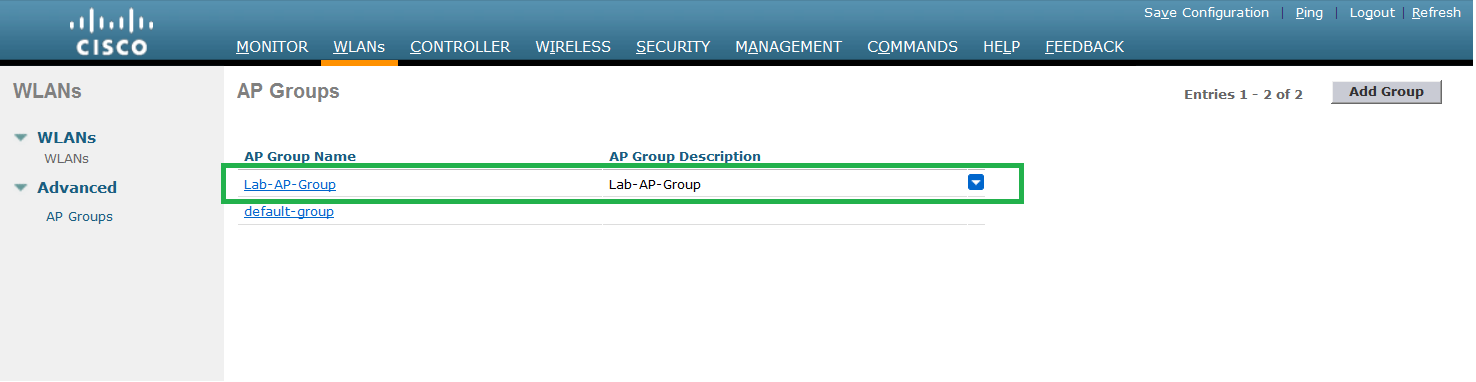
Step10. As you press ADD, it will add the group in the AP group list. At this point group has been created but no customization has been done.


Step11. Click AP group name to start the customization of the group. Under the GENERAL tab we can edit the description given in above step.

Step12. By default there is no WLAN select on the new group created. Press ADD NEW button to select the SSIDs.


Step13. Select the WLAN and its interface. Interface selected here will overwrite the interface setting done under the WLAN.

 AP1 is part of the AP group “ LAB-AP-GROUP”. And LAB-INTERFACE2 is selected as interface under WLAN setting. If we select the LAB-interface1 here under AP group, all the users which will associate to AP1 and connect to SSID” LAB_WLAN1” will get IP address from interface “LAB-INTERFACE1” not from LAB-INTERFACE2.
By doing this we have the flexibility to provide different IP addresses to the users present in different areas.


Step14. As you press enter, WLAN will become part of this AP group and all the APs under this AP group will start advertising LAB-wlan1 SSID.

We can add or delete SSID at any point of time.


Step15. Select the RF profiles created before.


Step16. Last part is to add APs to AP group. As mentioned before by default all APs are part of DEFAULT GROUP. Select the APs which you want to move from default to new AP group. Select the AP and press ADD APs tab.

Step17. As you press ADD APs, we will get the below warning which suggest that all the selected APs will reboot in order to reflect the new settings done under AP GROUP.


Step18. Once the AP boots up, you can see the AP under the selected AP group.


Step19. You can also remove the AP from an AP group. It is very similar as we have added the AP in particular group. Just select the APs and click REMOVE APs.


Step20. You will get the same Warning again.


Step21. This step is optional where you can configure the venue group and venue types


Step22. At this point AP group has been added successfully. Save the configuration.


Cisco Router as TFTP server


How many of us know that we can make our router/switch a TFTP server. It can be used to copy system image/file from one router/switch to another.
Let’s assume you have to copy image from your TFTP server to 10 switches located at a remote site where the WAN connection is very slow. In such scenario, we can copy system image from our TFTP server to only one switch and then we can copy the image from this switch to all other switches. It makes the file transfer fast and efficient.
I will use the below topology to explain how a router can act as TFTP server. We have two routers R1 and R2 connected via Fastethernet0/0. I will make R2 as TFTP server and copy IOS file “cat4500-ipbasek9-mz.122-31.SGA1.bin” from R2 to R1


Step 1: Check the connectivity between the devices using ping or traceroute.


R1#ping 10.0.0.2

Type escape sequence to abort.
Sending 5, 100-byte ICMP Echos to 10.0.0.2, timeout is 2 seconds:
!!!!!
Success rate is 100 percent (5/5), round-trip min/avg/max = 20/32/60 ms


Step 2: Check the size of image on R2.


R2# show bootflash: all
1   .D image        C3C7E4B4  A465EC   28 10249580 Jan 28 2005 20:15:00 +01:00 cat4000-i9s-mz.122-18.EW.bin
2   .. image        D92052BB 162A674   32 12468232 Mar 16 2005 07:39:05 +01:00 cat4000-i9s-mz[1].122-20.EWA.bin
3   .. image        F843DD91 224544C   35 12692824 Nov 27 2007 21:27:47 +01:00 cat4500-ipbasek9-mz.122-31.SGA1.bin
4   .. ascii text   43D62D10 22491D4    3    15624 Mar 18 2013 08:43:13 +01:00 hdr

25914924 bytes available (35426772 bytes used)


Step 3: Check the available memory space on R1.


R1# show bootflash: all


Step 4: Configure R2 as TFTP server using command Tftp-server:


R2(config)#tftp-server bootflash:cat4500-ipbasek9-mz.122-31.SGA1.bin


Step 5: Copy Image on R1 from R2.


R1#copy flash: tftp:
Source filename []? cat4500-ipbasek9-mz.122-31.SGA1.bin
Address or name of remote host []? 10.0.0.2

Step 6: Verify if the image has been copied successfully.


R1#Show bootflash: all


AAA configuration on Cisco router and switches


AAA stands for Authentication, Authorization and Accounting. It is a framework which controls the user access on the devices.
Authentication: It is used to check the identity of an user. It helps us in identifying the users and accordingly we can give access to them
Authorization: It controls the device access as per the user skill level. What access is given to which user. With this we can control access level of different users.  
Accounting: It is primarily used to log the activity of the users. This is very useful in auditing and billing purpose.
  Below are the AAA configuration on Cisco router and switches using Tacacs server. It doesn’t include the ACS configuration, it just explains the configuration required on the router and switches.
Step 1: Configure the Backup credentials. AAA doesn’t mean that we don’t require local credential. It is mandatory to have backdoor credentials so that we can access the devices when our AAA servers are down or unreachable.

Router(config)#username Admin password PowerKey


Step 2: Configure Tacacs servers. We can configure multiple Tacacs server.


Router (config)#tacacs-server host 192.168.1.10 key mySecretkey1
Router (config)#tacacs-server host 192.168.1.11 key mySecretkey2


Step 3: Choose the correct interface to be a source of Tacacs packet. It may create problem if we have multiple interface configured on a router. Choose the interface which has the same IP as in AAA server.

Router (config)#ip tacacs source-interface loopback 0


Step 4: Check reachability of Tacacs server from router. If there is a firewall between the router and tacacs server then make sure that TCP port 49 is opened to allow tacacs traffic.
Router #ping 192.168.1.10

Type escape sequence to abort.
Sending 5, 100-byte ICMP Echos to 10.0.0.2, timeout is 2 seconds:
!!!!!
Success rate is 100 percent (5/5), round-trip min/avg/max = 1/2/4 ms

Step 5: Enable AAA on router globally.

Router (config)#aaa new-model


Step 6: Configure the Authentication methods. Below command is applying authentication on router login. Default keyword applies the method on all lines.
Group tacacs+ sending the authentication request to all configured AAA servers.
LOCAL keyword specifies that in case all of the configured tacacs servers become unreachable, user will be authenticated using local user database. This fail back mechanism is not applicable if the TACACS server is reachable via ping but not handling the request may be because of wrong KEY configured on device or due to internal ACS problem.

ROUTER(config)#aaa authentication login default group tacacs+ local


Step 7: It authorize all the commands entered in Config mode.

Router(config)# aaa authorization config-commands


Step 8: It checks the privilege level of the user from AAA server. Without this command user will login in user mode only.

Router (config)# aaa authorization exec default group tacacs+ local if-authenticated


Step 9: Below command provides authorization to the privilege 1 user.

Router (config)# aaa authorization commands 1 default group TACACS+ if-authenticated

Step 10: Below command authorize the Level 15 users. Each time user run a command, switch send the query to Tacacs server to check if the user is authorize for it.

Router (config)# aaa authorization commands 15 default group TACACS+ local if-authenticated

Step 11: It enable the accounting on all lines.

Router(config)# aaa accounting exec default start-stop group tacacs+


Step 12: It logs all the activity of level 1 user.

Router(config)# aaa accounting commands 1 default start-stop group tacacs+


Step 13: It logs all the activity of level 15 users.

Router(config)# aaa accounting commands 15 default start-stop group tacacs+


Step 14: Applying AAA authentication on VTY lines.

Router(config)# line vty 0 15
Router(config-line)# login authentication default


Step15. Verification: Try to access the device using Tacacs credential


SNMP configuration- Cisco Nexus switches

SNMP configuration on Nexus

Step1. Login to nexus switch using admin credentials.


Xshell:\> ssh 192.168.1.1


Connecting to 192.168.1.1:22...
Connection established.
To escape to local shell, press 'Ctrl+Alt+]'.

User Access Verification
Cisco Nexus Operating System (NX-OS) Software TAC support: http://www.cisco.com/tac
Copyright (c) 2002-2012, Cisco Systems, Inc. All rights reserved. The copyrights to certain works contained in this software areowned by other third parties and used and distributed under
license. Certain components of this software are licensed underthe GNU General Public License (GPL) version 2.0 or the GNULesser General Public License (LGPL) Version 2.1. A copy of each
such license is available at
http://www.opensource.org/licenses/gpl-2.0.php and
http://www.opensource.org/licenses/lgpl-2.1.php
Nexus-switch#


Step2. Create object group for the interface used by SNMP server to poll the device. In this example we use the IP address of management interface. We have given the name snmp-Interface to management interface. It is basically a IP to name mapping.


Nexus-switch(config)# object-group ip address snmp-Interface
Nexus-switch(config-ipaddr-ogroup)# host 192.168.1.1                                    


Step3. Configure access list to allow snmp communication between server and device. Source will be SNMP server IP address and destination is management interface address.

For simplicity, I have used the IP in access list; you can specifically allow the snmp ports between server and device. If you allow specific ports, please make sure that trap port (UDP 162) must also be opened.

Access list for read only servers:


Nexus-switch(config)# ip access-list Readonly-snmp-traffic
Nexus-switch(config-acl)# permit ip 10.1.1.20/32 addrgroup snmp-Interface


Access list for write servers:


Nexus-switch(config)# ip access-list Readwrite-snmp-traffic
Nexus-switch(config-acl)# permit ip 10.1.1.20/32 addrgroup snmp-Interface


Step4. Configure Read only community


Nexus-switch(config)#snmp-server community CISCORO group network-operator


Step5. Configure Read write community


Nexus-switch(config)#snmp-server community CISCORW group network-admin


Step7. Configure access list for snmp communities.


Nexus-switch(config)#snmp-server community CISCORO use-acl Readonly-snmp-traffic
Nexus-switch(config)#snmp-server community CISCORW use-acl Readwrite-snmp-traffic


Step8. Configure the device location.


Nexus-switch(config)# # snmp-server location Lab


Step9. Configure the device contact information.


Nexus-switch(config)# snmp-server contact Network_Team


Step10. Configure the SNMP trap source address. SNMP server will receive traps with source interface mgm0. SNMP server will convert the traps to alert only if it has the correct MIB in its database.


Nexus-switch(config)# snmp-server source-interface traps mgmt 0


Step12. It enables the EIGRP traps (Authentication and SIA).
           

Nexus-switch(config)# snmp-server enable traps eigrp


Step13. Enable Linkdown traps.


Nexus-switch(config)# snmp-server enable traps link linkdown


Step14. It will send traps when HSRP state changes.


Nexus-switch(config)# snmp-server enable traps hsrp state-change


Step15. It enables traps for FAN status change.


Nexus-switch(config)# snmp-server enable traps entity entity_fan_status_change


Step16. Enable traps for module status change.


Nexus-switch(config)# snmp-server enable traps entity entity_module_status_change


Step17. Enable traps for unrecognised module


Nexus-switch(config)# snmp-server enable traps entity entity_unrecognised_module


Step18. Device will send the traps to server 10.1.1.20.


Nexus-switch(config)# snmp-server host  10.1.1.20 traps CISCOTRAPS